
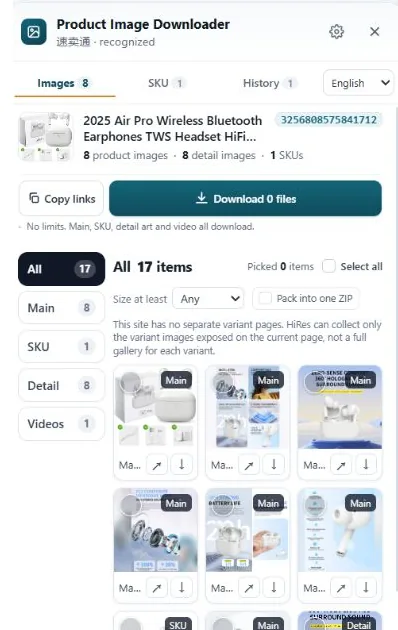
Skip the app for this job. Copy the product link into Chrome on a computer, open the listing on TikTok Shop's desktop site, and play the video once so the browser actually loads it. From there you can dig the file out through the browser, or use HiRes, which lists product videos alongside the images when the page exposes a separate file. In HiRes, video downloading is a Pro feature.
Why the app is the wrong tool here
TikTok is built for watching and sharing, not for handing sellers clean source files. A product video saved from the app often comes down at phone-friendly size, and clips shared out of the app commonly carry TikTok branding. For a quick look that is fine. For product research, supplier comparison or checking how a competitor demonstrates a feature, the watermark sits exactly where you want to look and the compression hides the details.
Some listings also carry several videos: one from the seller, plus clips from creators or customers. In the app they blend into a single feed. On desktop it is easier to tell which video belongs to the listing itself, and that is usually the one worth saving.
Method 1: open the listing on desktop web
TikTok Shop runs a web storefront in supported regions, and that is your way in:
- Copy the product link from the app with the share button rather than searching the product name again, because lookalike listings are everywhere.
- Paste the link into Chrome on a computer. You may land on a regional version of the shop. If the product will not open, sign in or check that your region matches the storefront the link came from.
- Scroll to the video and press play. Let it run for a few seconds. Browsers load video on demand, so a video that has never played may not exist as a file yet as far as your browser is concerned.
- Try right-clicking the playing video. On some listings you will get a save option straight away. On many you will not, because the player is a custom overlay. That is normal, and it is what the next method is for.
Method 2: pull the file out with developer tools
If the player gives you nothing, the video file is still travelling to your browser. You can catch it:
- Press
F12to open Chrome's developer tools and go to the Network tab. - Filter by Media, or type
.mp4into the filter box. - Refresh the page and play the video again. Look for the largest video request in the list, since longer files sometimes arrive in pieces.
- Right-click the request and open it in a new tab, then save the video from there with
Ctrl+S.
This works, but it is fiddly. Signed video URLs can expire, so save the file itself, not the address. And if the Network tab shows only small streaming chunks, the listing never hands over a single complete copy. No setting changes that.
Screen recording is the last resort, not a shortcut. It captures player controls, captions and whatever quality your connection streamed at that moment. Use it to note what a video shows, not to get a clean file.
Where people get stuck
- The listing is app-only. Some products, especially region-specific ones, never appear on the desktop storefront. There is no desktop page, so there is nothing for a browser tool to read.
- A login wall stops the page loading. If product details load only after sign-in, a signed-out session sees a shell of the page and none of its media.
- The video is a live replay or a creator clip. These are attached to the product in the app but are not always exposed as product media on the web page.
- The link opens the wrong region. TikTok Shop storefronts are regional, so a US shop link opened in a UK session can redirect to a search page instead of the product.
Doing it with HiRes instead
HiRes is a Chrome extension that works on the product page you already have open. Click the floating HiRes button and the panel groups what the page exposes: the carousel images, SKU images with their option labels, description images, and product videos where a separate video file is available. Select the video and download it to your Downloads folder. Video downloads are part of Pro, which is $19 once, with no subscription. Images stay free, including on pages where the video is not downloadable.
The limit is the same one every tool has. HiRes can only save a video the page actually delivers to your browser. If TikTok streams a clip in fragments, locks it to the app, or hides the listing behind a login, the panel shows the images and no video, because that is what the page exposed. Everything is processed locally, and files are never uploaded to HiRes.
Whose video is it? A product video belongs to the seller or creator who made it. Saving a copy to study how a product works or how a competitor presents it is ordinary research. Re-uploading that clip to your own listing or ad account is a different thing entirely, and it can get the video claimed or the listing flagged. Get permission first, or film your own version.
Questions people ask
Does saving a TikTok Shop video in the app add a watermark?
Often, yes. Videos saved or shared out of the app commonly carry TikTok branding, and the file is compressed for phones. The exact result depends on the video and the share path, but the app is not the cleanest source if you need the original product clip for research.
Can I download a TikTok Shop product video without the app?
Yes, when the same listing is available in TikTok Shop on desktop web in your region. Open the product page in Chrome, play the video so the browser loads it, and save the video file the page exposes. Some listings are app-only or sit behind a login, and those cannot be reached the same way.
Why can HiRes see the images but not the video?
The page may stream the video in a form that does not expose a separate downloadable file, or the clip may be region-locked, app-only or behind a login. HiRes lists product videos where the page exposes them. If the browser never receives a distinct video file, there is nothing for any downloader to save.
Is video downloading free in HiRes?
No. Product video downloads are a Pro feature. HiRes Pro costs $19 as a one-time purchase and also adds ZIP packaging, image resizing and JPEG quality controls, expanded batch export and long-term history. Individual image downloads are free.
Get the video without the watermark
Open the listing in Chrome and HiRes lists the product video next to the images, ready to save when the page exposes it. Images are free; video downloads come with Pro.
Get HiRes for Chrome