
Temu serves heavily compressed copies of product photos on the page, so right-click saves look worse than the originals. The underlying files are cleaner, and you can reach them from the desktop site: open the image in a new tab, or let a tool read the page's image set. Manage expectations, though. Suppliers often upload mid-resolution photos, so the best file on a Temu listing is often decent rather than huge.
Why Temu photos look worse than they are
Temu is built for bargain phones on slow connections, and the product pages are tuned for that. Photos get squeezed hard before they reach your screen: smaller dimensions, aggressive JPEG compression, artifacts around logos and any print on the product. What you are looking at on the page is a copy made for fast loading, not the file the supplier uploaded.
Underneath that copy sits the original upload, and it is usually noticeably cleaner. Text on packaging is readable, edges are sharper, the colours look less muddy. It just isn't always big. Plenty of Temu suppliers shoot or receive their photos at phone resolution and upload files in the 1000 to 1500 pixel range, sometimes less. So the gap between the page copy and the original is real, but don't expect a 4000-pixel studio file at the end of it.
Start on desktop, not in the app
Most people find products in the Temu app, and the app is a dead end for saving photos. Long-pressing an image saves nothing on most listings, screenshots keep the on-screen compression and crop awkwardly, and the share sheet would rather send you to another app. The desktop site is the same catalogue with none of those locks.
Use Share in the app, copy the product link, and open it in Chrome on a computer. If the link bounces you to an app store page, search the desktop site for the product title instead; the listing is usually the same one. From here on, everything happens on the desktop page.
Saving the gallery, options and detail stack by hand
A Temu listing has three sets of images, and each one hides in a different place:
- Main gallery. The carousel at the top. Click through each photo, open it large, then right-click and save, or open it in a new tab and save from there. The enlarged view loads the better file, so save from that view, not from the thumbnail strip.
- Option images. Click every colour or style option under the price. Each option swaps the gallery to its own photo, and some options have shots that never appear otherwise. Miss an option and you miss its picture.
- Detail stack. Scroll down. Size charts, fabric close-ups, packaging shots and lifestyle photos live in one long stack of images below the description, sometimes 20 or 30 of them. They load as you scroll, so scroll to the very bottom first, then work back up saving them.
It works, and for one product it is maybe five minutes. The annoying parts are the repetition and the misses: forget to scroll and the last detail images were never loaded, so there is nothing on the page to save. Do this for a whole page of search results and it turns into a long evening.
Doing it with HiRes
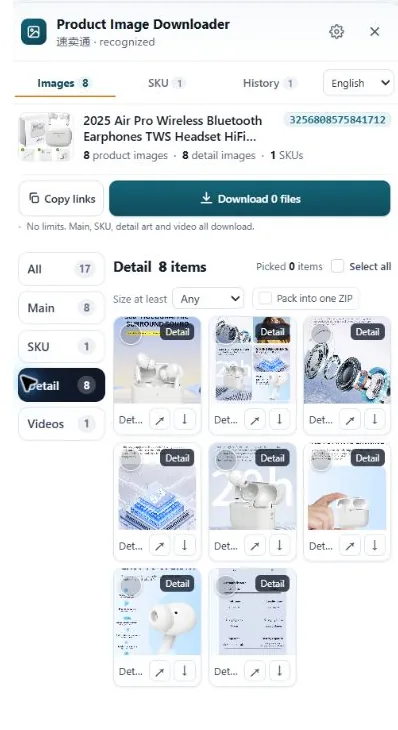
HiRes reads the Temu page you are on and sorts what it finds into groups: main gallery, option images, and the detail stack, each one the best file the page exposes rather than the squashed display copy. Click the HiRes button on the product page, tick the images you want, and save them to your Downloads folder. Single files are free, with no account and no daily limit; if you want the whole set as one ZIP, that is in Pro at $19 once.
Two honest limits. HiRes can only collect what the page loads, so if you haven't scrolled, the tail of the detail stack isn't there yet. And it can't add resolution that was never uploaded. If the supplier's original is 1200 pixels wide, 1200 pixels is what you get, just without the extra compression Temu piles on for display.
A realistic note on quality. If you are saving Temu photos to judge a product, check sizing or brief your own photographer, the originals are plenty. If you are hoping for print-catalogue quality, no marketplace in this price bracket will give it to you, and upscaling tools just invent detail that isn't in the file.
Questions people ask
Why do Temu product images look blurry on the page?
Temu compresses the images it displays to keep pages fast on cheap phones and slow connections. The file underneath the display copy is usually cleaner than what you see, but it is rarely huge. Many suppliers upload mid-resolution photos to begin with, so the original might be 1000 to 1500 pixels rather than a print-size file.
Can I save Temu images from the app?
Not cleanly. The app is built for shopping, not saving, and long-pressing a photo does not give you the full file on most products. Open the same product on Temu's desktop site in Chrome instead, by following a shared link or searching the product title, and save from there.
Where are the size and material photos on a Temu listing?
Below the main gallery, in the long description stack. Temu listings put size charts, material close-ups and lifestyle shots in one continuous run of images. You have to scroll the page to the bottom to make the browser load them all before you save anything.
Does HiRes work on Temu?
Yes. Open a Temu product page in Chrome, click the HiRes button, and the panel groups the main gallery, the option images and the detail stack it finds on the page. Individual downloads are free; ZIP packaging is part of Pro, which is $19 once.
Skip the scroll-and-save routine
HiRes collects the gallery, option images and detail stack from the Temu page you are already on, and hands you the cleanest files the page has. Free for individual downloads, no account needed.
Get HiRes for Chrome