
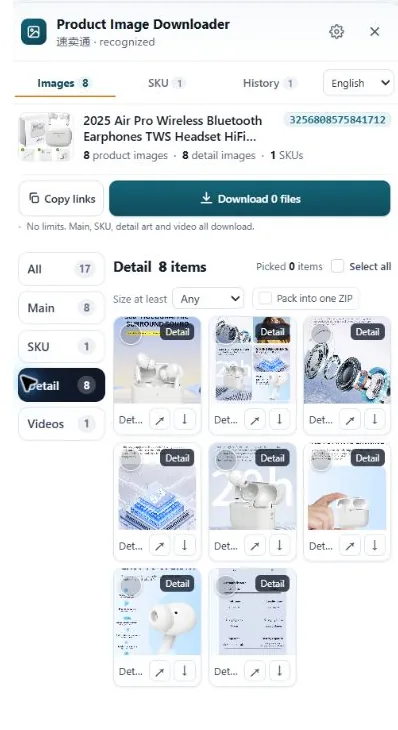
AliExpress displays compressed copies of product photos and writes the size into the end of each image URL. Trim the suffix off and you usually get the bigger original. The gallery, the per-option SKU photos and the description images are three separate sets, and some of them only load after you scroll. A downloader panel collects all three in one pass.
Why your saved copies are smaller than the listing
AliExpress hosts product photos on its own image servers and serves resized copies on the listing page to keep it fast, especially for shoppers on slow mobile connections. The gallery photo in front of you might be a 960px copy of a much larger upload. Right-click and save, and you get the copy in front of you. Same story as every other marketplace.
The giveaway is the file name. Open one of the images in a new tab and read the end of the URL. Display copies often finish with a size suffix such as .jpg_960x960, or carry a quality tag like _Q90. That tail is an instruction to the image server: hand out this size, at this quality. The original file sits at the same address without it.
Method 1: trim the size suffix off the URL
For a single photo, this takes about twenty seconds:
- On the product page, click the gallery photo you want so it displays large.
- Right-click it and open the image in a new tab.
- Find the size suffix at the end of the URL, for example
.jpg_960x960or a_Q90tag. - Delete the suffix so the address ends in a plain
.jpg, then load that address. - If a larger file exists at that address, that is what loads. Save it.
One caveat, and it matters: this only returns what the seller uploaded. Plenty of suppliers upload modest files to begin with. If the trimmed URL loads the same picture at the same size, there is no bigger version hiding anywhere, and no tool can invent one.
Method 2: collect the gallery, the SKU photos and the description stack separately
An AliExpress listing is three sets of images, not one. Miss a set and your research file has holes in it.
- Gallery photos. The main carousel at the top, usually six to eight shots. Save each one with the suffix trick above.
- SKU photos. Many listings attach a photo to each color, style or size option. The gallery only shows the photo for the option you have selected. Click every option in turn and save its photo while it is selected. Skip this and you end up with the black version documented and nothing for the white one.
- Description images. Further down sits a separate, long stack: measurement charts, detail close-ups, size tables, factory shots, with text between them. These are not part of the gallery and they never show up in the carousel.
The description stack has its own trap. The images load lazily, which means the page only fetches each one as you scroll near it. Save the page straight after it opens and the lower images can come out missing or blank. Scroll through the whole description once, slowly, before you save anything. For one listing this whole routine is a few minutes. For twenty listings in a sourcing session, it eats your afternoon, and you will still miss an option photo somewhere.
Doing it with HiRes
HiRes is a Chrome extension that sits on the product page. Click the floating button and the panel shows what the page exposes, sorted into the same three groups: gallery in one, SKU images with their option labels where the page provides them in another, description images in a third. Save files one by one for free, with no daily cap, or package a larger selection as a ZIP with Pro ($19 once, no subscription). Copying image links instead is built in too.
The honest limits. The panel reads what the page has loaded, so give the description a scroll first or the lazy images at the bottom will not be there to collect. Choice listings arrange things a little differently from regular ones, but the grouping comes out the same. And everything runs locally in your browser: files go from AliExpress's servers to your Downloads folder, never through us.
A note on reusing supplier photos. Downloading AliExpress photos for research, spec sheets and comparison is everyday seller work. Putting a supplier's photos straight into your own live listing is a different question, and the answer depends on permission. We covered the grey areas in our guide to using supplier photos, including what a supplier's chat message does and does not cover.
Questions people ask
Why do AliExpress image URLs end in codes like _960x960?
That suffix is a sizing instruction for AliExpress's image servers. It tells the server to hand out a resized copy instead of the original file. Remove the suffix and the same address usually returns the largest version the seller uploaded.
How do I download the photo for one specific color or size?
Click that option on the product page first. AliExpress swaps the gallery to show the selected option's photo, and on many listings each option carries a photo of its own. Save it while that option is selected, then repeat for the others you need.
Why are the description images missing or blank when I save them?
Description images load lazily, which means the page only requests them as you scroll close to them. If you save straight away, the lower images may not have loaded yet. Scroll through the whole description once, slowly, then go back and save.
Does HiRes treat Choice listings differently?
Choice pages use a slightly different layout, but the images fall into the same three groups: gallery, per-option SKU photos and description images. HiRes reads whatever the page exposes, so a Choice listing works the same way, with the same caveat that anything the page has not loaded yet cannot be saved.
Skip the suffix trimming
HiRes gathers the gallery, SKU and description images from the AliExpress page you are already on, in one panel. Free for individual downloads, no account needed.
Get HiRes for Chrome