
Start with right-click and check what you actually got. If that fails, or the file is small, open the image in a new tab and look for a size code in the URL. Background images and other stubborn cases need DevTools and the Network tab. Product pages on the big marketplaces are a special case, and that's the one case where a specialist tool beats the generic methods below.
Method 1: right-click, then check what you actually got
Right-click and "Save image as" works fine on a plain image, and it's the right first try. Just don't stop there. Open the saved file and check its dimensions before you rely on it. Most sites display a scaled copy, often 500 to 800 pixels wide, so the photo that looked sharp inside the page can be the small version.
Right-click also fails in two predictable ways. If the picture is set as a CSS background, there is no image under your cursor as far as the browser is concerned, and no Save option appears. And some pages lay a transparent element over their photos, so your click lands on that instead. Both cases are method 3 below.
Method 2: open the image in a new tab and read the URL
Right-click and choose "Open image in new tab," then look at the address. Big platforms write the requested size into the file name, and editing that segment asks the server for a different copy of the same photo:
- Amazon: a segment like
_AC_SL1500_. Raise the number, or delete the segment entirely to get the largest version held. - eBay: URLs end in a size code.
s-l500is the mid-size copy; swap it fors-l1600for the biggest one commonly served. - Etsy: display photos carry sizes like
il_794xN. The full file is the same name withil_fullxfull.
The ceiling is whatever the uploader provided. If a seller uploaded a 1200px original, the "full size" is 1200px and no URL edit invents more. Still, on marketplace pages this one trick gets you from thumbnail to usable file most of the time.
Method 3: DevTools, for background images and stubborn pages
When right-click gives you nothing, the Network tab will. It lists every file the page loaded, images included, whatever the page layout pretends:
- Press F12 (or right-click the page and choose Inspect) to open DevTools.
- Go to the Network tab and click the Img filter.
- Reload the page. Every image the page fetches appears in the list, with its size.
- Sort by size, click the likely candidates to preview them, then right-click the right one and open or save it.
Scroll down the page before you give up on a missing image. Many sites lazy-load, fetching photos only when they near the screen, so a file that hasn't loaded yet won't be in the list. This method takes two minutes once you've done it twice, and it works on nearly any page your browser can display.
Method 4: a scanner tool that lists everything on the page
Generic image downloader extensions scan the page and present every image they find in one list, so you can pick and save in bulk. For an article page or a portfolio, that list is exactly what you want. On a product page it has a drawback: the list mixes gallery photos with logos, icons, payment badges and tracking pixels, and nothing tells you which photo belongs to which variant. You get everything, labelled as nothing.
Where HiRes fits, and where it doesn't
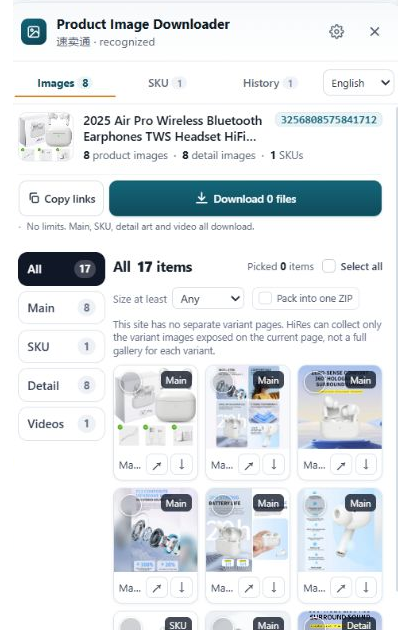
Honest scope note, since we make one of these tools. HiRes is built for product pages on eight marketplaces: Amazon, AliExpress, eBay, TikTok Shop, Temu, Etsy, Lazada and Walmart. On those pages, its panel groups what the page exposes into main gallery, variant images with their option labels, and detail images, so you skip the new-tab URL editing and the unlabelled pile. Individual downloads are free; a ZIP of a bigger selection is part of Pro at $19, one time.
On any other website, a news article, a blog, a supplier's own homepage, HiRes isn't the tool and the panel won't help you. Use the methods above. We'd rather tell you that here than have you install it and find out on the wrong page.
Questions people ask
Why is there no "Save image as" when I right-click?
The picture is probably a CSS background image, or it sits under a transparent overlay, so the browser doesn't treat your click as landing on an image. Open DevTools, switch to the Network tab filtered to images, reload the page, and save the file from there.
Why is the image I saved so much smaller than it looked on the page?
You saved the display copy. Sites serve scaled-down versions for speed and keep the original at a different URL, often with a size code in the file name. Opening the image in a new tab and editing that code usually reaches the bigger file.
Can a website stop me from downloading its images?
It can make it awkward: disabling the right-click menu, hiding images behind a login, blocking hotlinks. None of that changes the rights side. An image you can technically save is still its creator's property, so keep downloads to research and reference unless you have permission to do more.
Does HiRes work on any website?
No, and we'd rather say so plainly. HiRes is built for product pages on Amazon, AliExpress, eBay, TikTok Shop, Temu, Etsy, Lazada and Walmart. For blogs, news sites and everything else, use the generic methods in this article.
On a marketplace product page? Skip the ladder
HiRes groups a product page's main, variant and detail images in one panel on the eight marketplaces it supports. Free for individual downloads, no account needed.
Get HiRes for Chrome